Hotel TVs don’t have to mean being stuck with basic cable channels. Most modern hotel televisions allow guests to connect their streaming devices and accounts to watch their favorite shows and movies.
Travelers can stream content on hotel TVs using HDMI cables with their own devices, built-in smart TV apps, casting from phones or tablets, or portable streaming sticks. The process takes just a few minutes to set up in most cases. Each method works differently depending on the hotel’s TV model and available technology.
Understanding these options helps travelers maintain their entertainment routines while away from home. The right streaming method depends on what devices a person brings and what connections the hotel TV supports.
Key Takeaways
- Multiple methods exist for connecting streaming services to hotel televisions using personal devices or built-in features
- Preparation includes bringing the right cables and devices while knowing how to troubleshoot common connection problems
- Different hotel TV models support different streaming options, so having backup methods ensures success
Core Methods for Streaming to a Hotel TV
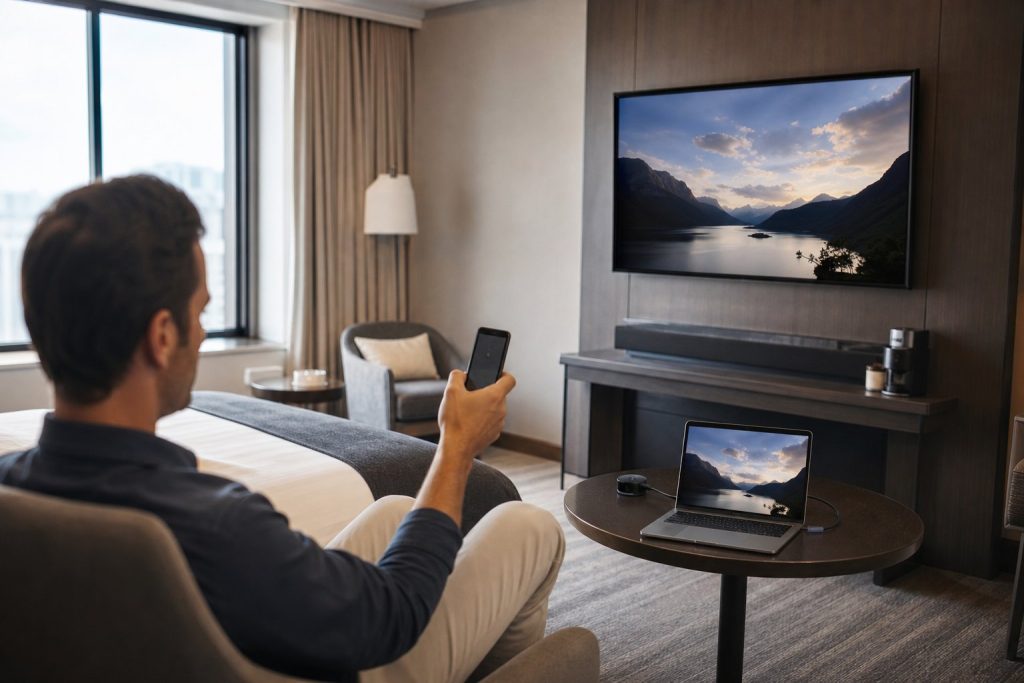
Most hotel TVs accept external streaming devices through HDMI ports, while newer models offer built-in smart features that connect directly to your accounts. Network authentication through captive portals requires extra steps but works with both methods.
Using Your Own Streaming Devices
Travelers can bring their own Chromecast, Apple TV, or similar devices to connect to hotel TVs. These devices plug into available HDMI ports and need power from either a USB port on the TV or the included USB power cable connected to an outlet.
A Chromecast requires initial setup through the Google Home app on Android or iPhone devices. Apple TV works with iPhones and iPads through AirPlay for wireless streaming. Both devices need apps downloaded from Google Play or the App Store before the trip.
The main challenge involves authenticating the streaming device on the hotel network. The captive portal login page that hotels use won’t appear automatically on streaming devices. Guests must first connect their phone or laptop to the hotel WiFi, complete the captive portal login, and then note the network name and password to enter on their streaming device.
Some hotels block device-to-device communication on their networks. This prevents the ability to cast to the hotel TV from a phone. Using a personal hotspot from a smartphone bypasses this restriction but uses cellular data.
Connecting via Smart TV Features
Many hotel rooms now feature smart TVs with built-in streaming apps. These TVs include popular services but require guests to log into their personal accounts. Users should always remember to log out before checkout to protect their account information.
Smart TVs in hotels often have a guest mode or reset function. This feature clears all login information when activated. Guests can access Netflix, Hulu, and other services directly without additional hardware.
The TV remote provides access to the app menu. Navigation works like home smart TVs, with apps available for selection on the main screen.
Dealing with Hotel Network Limitations
Hotel networks use captive portals that require room numbers or last names for authentication. This creates problems for Chromecast and Apple TV devices that can’t display web pages for login.
One solution involves MAC address cloning, where the streaming device copies the phone’s network identity. Another option asks hotel staff to whitelist the device’s MAC address on their network. Front desk employees can usually add devices to their system within minutes.
Bandwidth limitations affect streaming quality during peak hours. Lowering video quality settings in streaming apps prevents buffering. Most services allow quality adjustment in their playback settings.
Preparation and Troubleshooting
Getting streaming to work on hotel TVs requires checking compatibility first and knowing how to handle common connection problems. These steps help avoid frustration and get shows playing faster.
Ensuring Device and TV Compatibility
Most hotel TVs have HDMI ports that work with streaming devices like Chromecast, Fire Stick, or Roku. Travelers should check if the TV has accessible HDMI inputs before unpacking their devices.
Many hotels disable HDMI ports or USB ports to prevent tampering. If the HDMI port is blocked, guests can ask the front desk to enable it. Some newer hotel TVs have built-in casting options for Android and Apple devices through Chromecast or AirPlay.
A USB power cable can power smaller streaming devices directly from the TV’s USB port. This works well when power outlets are limited or far from the TV. However, some hotel TV USB ports only supply low power and won’t work with all devices.
Travelers using smartphones or tablets should verify the hotel TV supports screen mirroring before relying on it. Android devices need a TV with Chromecast built-in or a connected Chromecast dongle. Apple devices require AirPlay 2 support, which only exists on select smart TVs.
Bypassing Captive Portals and Wi-Fi Restrictions
Hotel Wi-Fi networks use captive portals that require login through a web browser before allowing internet access. Streaming devices without browsers can’t complete this step on their own.
A travel router solves this problem by connecting to the hotel Wi-Fi first. The router handles the captive portal login, then creates a separate network for streaming devices. This lets Chromecast and similar devices connect without browser requirements.
Another option is connecting the streaming device to a phone’s hotspot temporarily. Users can cast to a hotel TV through the hotspot, though this consumes mobile data quickly.
Some travelers use laptop connection sharing as an alternative. The laptop connects to hotel Wi-Fi and completes the captive portal, then shares its connection via Wi-Fi hotspot or Ethernet cable.
Enhancing Streaming Stability on the Road
Hotel Wi-Fi often has weak signals or gets congested during peak hours. Positioning closer to the room’s Wi-Fi access point improves connection strength for streaming devices.
Travel routers with external antennas provide better signal reception than built-in device antennas. They also allow switching between multiple Wi-Fi networks if the hotel offers different bands or access points.
Lowering video quality settings prevents buffering on slower hotel connections. Most streaming apps let users select 720p or 480p instead of automatic HD settings.
Streaming during off-peak hours, like early morning or late night, often provides better speeds. Fewer guests use the network during these times, leaving more bandwidth available.
Frequently Asked Questions
Many travelers want to know how to connect their phones to hotel TVs, whether through cables or wireless methods, and how to deal with the hotel’s Wi-Fi login pages that can block streaming devices.
How can I connect my iPhone to a hotel TV to watch my apps?
The simplest method is using a Lightning to HDMI adapter. The user plugs the adapter into their iPhone’s charging port and connects an HDMI cable from the adapter to the TV.
This creates a direct wired connection that mirrors everything on the iPhone screen to the TV. The adapter needs power from a USB cable to work properly.
Alternatively, if the hotel TV supports AirPlay 2, the user can connect wirelessly through the TV’s built-in features. They select the AirPlay option in their iPhone’s control center and choose the hotel TV from the list of available devices.
What’s the best way to use a Chromecast on a hotel TV with captive Wi‑Fi?
A travel router solves the captive portal problem that hotels create. The traveler connects the travel router to the hotel’s Wi-Fi network and completes the login page on their phone or laptop.
The Chromecast then connects to the travel router’s network instead of directly to the hotel Wi-Fi. This bypasses the login page issue since the router handles the authentication.
Another option is using the Chromecast’s guest mode feature. This allows the device to connect directly to the user’s phone through Bluetooth and Wi-Fi without needing to join the hotel network.
How do I wirelessly mirror my phone’s screen to a hotel TV?
Most modern hotel TVs support screen mirroring through Miracast or similar protocols. The user looks for options labeled “Screen Mirroring,” “Smart View,” or “Wireless Display” in the TV’s input menu.
On an Android phone, they open the quick settings panel and tap the screen mirroring or cast icon. The phone searches for available displays and shows the hotel TV as an option.
iPhone users need a TV that supports AirPlay. They open Control Center, tap Screen Mirroring, and select the hotel TV from the list that appears.
How can I watch Netflix on a hotel TV using my iPhone?
The Lightning to HDMI adapter method works for Netflix and other streaming apps. The user connects their iPhone to the TV with the adapter and cable, then opens the Netflix app normally.
Some hotel TVs have Netflix built into their smart TV interface. The traveler can log into their own Netflix account directly on the TV and remember to log out before checkout.
Using AirPlay provides another wireless option if the TV supports it. The user plays content in the Netflix app and uses AirPlay to send it to the TV screen.